
NEW Participate: Track 2
To participate in Track 2, teams are required to register, sign the n2c2 Rules of Conduct, and sign Data Use Agreements for MIMIC (Subtasks A–C) and for the University of Washington (Subtasks B and C) to get access to the datasets. See below for details on each DUA.
MIMIC DUA
You must assemble and submit a PDF demonstrating that you have both of the following:
- A credentialed account on the PhysioNet website
- An approved DUA associated with the MIMIC-III Clinical Database (v1.4)
In 2019, PhysioNet changed their credentialing system, and the profile views differ for pre-2019 and post-2019 PhysioNet accounts. Where applicable, the instructions below differentiate between these account vintages.
Steps
- Log in to PhysioNet with your email and password.
- On the top right corner, you will see your profile name with a dropdown menu.
- Go into the Settings page.
- Capture credentialing information:
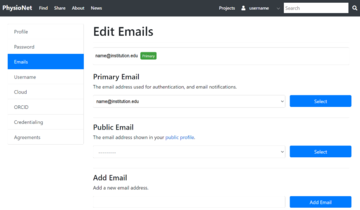
If you were credentialed pre-2019, go to Emails and capture a screenshot that includes both your username and email address to include in a PDF for upload.
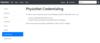
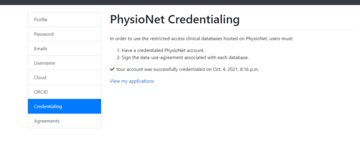
Then go to Credentialing and capture a screenshot that includes both your username and the credentialing date to include in a PDF for upload.
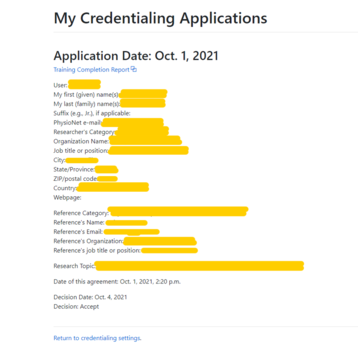
If you were credentialed post-2019, your Credentialing page will include a View my applications link, which will open your My Credentialing Applications page. Take a screenshot of the My Credentialing Applications page to include in a PDF for upload.
- Return to the Settings page, then Agreements.
If you were credentialed pre-2019, the Agreements page may be empty. To add MIMIC-III, perform the following:- Go to: https://physionet.org/content/mimiciii/1.4/
- Click “sign the data use agreement” at the bottom of the screen
- (Re)submit the MIMIC-III agreement
Return to the Agreements page and confirm MIMIC-III is included
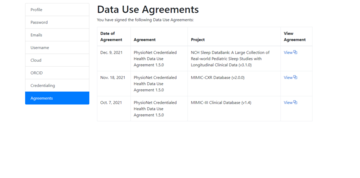
- Locate the MIMIC-III Clinical Database (v4) in the Projects column and click on View corresponding to it.
A new tab opens with the MIMIC-III DUA signed for the dataset. Take a screenshot of the page to include in a PDF for upload.
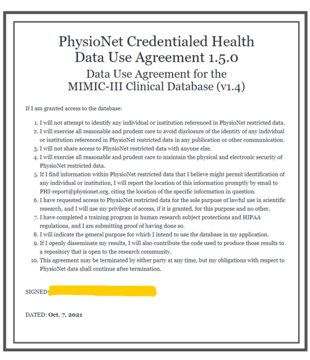
- Create a PDF of your screenshots to show:
- Your credentialed account on the PhysioNet website
- Your approved DUA associated with the MIMIC-III Clinical Database (v1.4)


The following examples show what your PDF will look like, depending whether you were credentialed before or after 2019:
University of Washington DUA
Instructions to come